


How to use your Google Business Profile to get more customers
To get the most out of your business profile on Google (formerly Google My Business), it's important to regularly optimize it.
Business owner (product or service)?
Losing customers to competitors? Want new customers?
Google is the most popular website in the world. The site currently holds more than 90% of the search engine market share. Creating a Google Business Profile (formerly known as Google My Business) is an important way to attract new customers to your business in Google search results and Maps.
Things are changing at Google - for starters, Google My Business has become the 'Google Business Profile', in an effort to unify their services for business owners. In addition, Google is removing the GMB app from the app store, and now you can edit your business profile directly from Google.
What is the business profile on Google (Google for my business)?
profile The business is on Google | Google for my business Google My Business | Google Maps | Google My Business | Google Business Profile
These are all synonyms for a free business profile on Google, which helps you stand out and attract more customers to your business.
This is a free business profile from Google that allows you to provide details and information about the business, including photos, location, services, promotions and products the business offers.
Creating a profile on Google is a great way to increase the visibility of the business in all Google services.
Information from the business profile on Google may appear in search results, Google Maps and Google Shopping.
The Google Business Profile is only available to businesses that have a relationship with customers.
Includes businesses with a physical location (such as a restaurant or store) and businesses that provide services by meeting customers in other locations or such services to the home (such as consultants, plumbers, locksmiths, lawyers and more).
If you have a web-only business, you'll need to stick to other Google tools like Google Ads and Google Shopping.
With the years and changes, Google has an active social network!
Google took a successful service and slowly added social-like features to it, and now you can finally call the business profile on Google a social network.
Why do you need a business profile on Google?
Discover on Google and Google Maps!
Whether you are looking for customers who will physically come to the business or you are a business that provides a service, Google is the ultimate place.
A Google Business Profile helps ensure that people find your business when they search for products and services like yours in a specific geographic area.
A well-managed business profile is presented to searchers and shows where and how to visit your business and all the ways to contact you.
Through effective management of the business profile on Google, it is also possible to significantly improve the local organic promotion (SEO) of the business.
A local business profile is more likely to appear when people search for a nearby business using Google Maps if it is well promoted (in the top three).

Control of accurate business information of the business
The business profile on Google allows you to control and update the contact information, hours of operation and other essential details as needed.
Updates can be posted to share that you've expanded services, temporarily closed, or completely reopened (a feature especially useful in emergencies like COVID-19).
Google Promoted Business Profiles have strong local promotion, so the information you share will rank above competitor sites that may contain out-of-date details.
Build trust through reviews
Reviews are a key component of social proof, and a significant way to build trust and credibility.
The integrated Google star rating and space to leave a detailed review allows customers to share as much or as little information about their experience with your business as they want.
All this helps future potential customers decide which businesses to choose and which products to buy.
Sometimes it's a bit daunting to think about reviews coming in such a public platform, especially since the business owner can't choose which reviews to share (but you can respond to all reviews from the profile)
But don't be alarmed, a combination of positive and negative reviews is more reliable than a profile that only has glowing recommendations.
People like to read recommendations (even negative ones), the question is how you deal with them.
Claim and verify your business on Google
Google provides each profile with several options to verify the business, it is possible to verify through a voice call to the phone, a text message, an email and sometimes a postcard in the mail is needed.
These measures are designed to verify the true identity of the business owner and ensure that control of the profile does not fall into the wrong hands. Although these measures come to protect you, the process can be tedious.
Some businesses go through the verification process of the business profile very quickly and for some it is much more difficult and even sometimes without success at all.
How to set up the business profile on Google
Step 1: need to enterGoogle's business profile management tool
If you are already signed in to a Google account, then you will be signed in automatically.
Otherwise, you'll need to enter your regular Google Account login information or create a new Google Account.
Step 2: Add the business
Type the name of the business, if it does not appear in the drop-down menu, then there is an option to click on add your business to Google.
Then choose the appropriate category for your business and click next.

Step 3: Add the location of the business
If the business has a physical location that customers can visit, select Yes and then add the address.
You may also be asked to place a marker on the map for the location.
If you don't have a physical location that customers can visit but you offer services in a certain area or a delivery service,
You can list the service delivery areas (you can also choose a service area - the whole country), then click next.

If you have not entered a physical address, Google will ask you to indicate in which area your business provides service.
You can search and choose from the proposed menu and then click next.

Step 4: Adding contact details
You need to enter the phone number and website address of the business. If you prefer not to be contacted by phone, then you can only add the website and vice versa.
Then, click Next.

Step 5: Business verification
The actual physical address must be entered and not a PO Box, this information is only used to verify the business and is not displayed on the business profile on Google or shared with the public.

After you enter the address and click next, you will be offered the relevant options for verifying the profile (you can skip the process and verify at a later time).
Physical businesses will often need to receive a postcard in the mail to verify their location.
Businesses in the service sector can usually be verified via e-mail, phone or SMS.
After you receive the five-digit code, you need to enter it in the Google business profile management tool.
Step 6: Customize your profile:
- Adding services from an existing list that Google offers or creating and adding a custom service.
- Adding business hours - updating business hours will allow customers to know when your business is open, according to specific hours and days and up to the option of being open 24 hours a day.
- Adding an option to send messages - this feature allows customers to send your business Google messages for free and the option to reply to them from the profile.
- Adding a business description - Adding a description to the business profile in search, maps and other Google services will allow customers to find more information about the business.
- Adding pictures of the business - adding pictures allows you to showcase your products and services and give customers a glimpse inside the business (the pictures can appear in search, 'maps' and other Google services).
- You can start advertising easily, in minutes with Google Ads (sponsored advertising).
All details will be displayed to customers on Google after the business is verified, you can continue to make updates to the business profile at any stage.
When everything is filled in, you can click on continue, and you will find yourself in the control panel of the tool for managing the business profile in Google.

From here you can manage the business profile, update information, display insights, manage reviews and messages and create Google ads.
Want to appear at the top of the Google Maps search results? We are here to help!
Call now or fill out a quick contact form
How to optimize the business profile
Google determines the local search ranking based on three factors:
relevance: How relevant your business profile on Google is to search.
distance: How far is the location of the business from the search or the searcher.
prominence: How well known your business is, based on factors such as links, amount of reviews, review score and of course organic promotion (SEO).
Here are some basic steps you can take to maximize your rating score for the three factors.
Completion and updating of all components in the business profile
If the business profile on Google is complete, customers are about 2.5 times more likely to regard your business as reputable.
They are also 70% more likely to interact with your business in some way such as a call, message or visit to a physical location.
A business profile with complete and accurate information improves its relevance score.
We basically tell Google visitors "what does the business offer, where is it located and when can they visit."
That is why it is important, for example, to update the operating hours if they change during holidays or seasons.
Verifying the location of the business
Unverified business profiles will not be eligible to appear in local search results on Google products, such as Maps and Search.
Including a verified physical location also helps improve the business score for the distance rating factor.
If you skipped location verification during the account creation steps, verify the business in one of the ways detailed in step 5.
Adding photos, videos and content regularly
The business profile on Google includes a logo, cover photo, atmospheric photos, exterior, team, videos and more.
It's important to use images that match those on your social profiles to make it easier for people to recognize your brand.
It's important to occasionally add photos and videos to show the location, work environment and staff at work.
For example, if you have a restaurant, you need to publish photos of the dishes, menus and atmosphere, and of course make sure they look appetizing, professional and not of low resolution.
Businesses with quality images and content receive more calls and more clicks to their websites.
How to add or edit photos on the Google business profile:
From the control panel, click on images in the right menu.
You start by adding the logo and the cover photo, then you can upload a photo, choose one of the business profile albums or choose a photo in which the business is tagged.
To add more photos, click on Work or Team in the top menu of the photos page.
To add videos, click the Video tab at the top of the photos page.

Include keywords in the business profile
Use of correct and marketing keywords to improve relevance by using keyword analysis and planning tools.
It is important to integrate them in a natural and marketing way in all the text and publications that are uploaded to the business profile.
Incorrect and irrelevant keywords can actually harm your business's search results ranking.
Encourage and answer reviews and questions
People trust other people more than they trust the business owners themselves.
A good review can be the deciding factor that tips potential customers in your favor, and also improves your Google ranking.
The best time to ask for a review is after providing a good service experience.
To make the process easier, Google provides a direct link to ask customers to share their experience with your business.
To share your business review request link with customers:
1. In the business profile control panel, scroll down to the button that says Sharing a review form.

2. Copy and paste the link in the message to customers, or in the feedback and the automatic receipts that are sent after receiving a product/service.
It is not possible to disable reviews for your business profile on Google. Because reviews show customers that your business is genuine and reliable.
The only option is to report inappropriate reviews, if you come across them.
Also, it is important and very worthwhile to respond to reviews, both positive and negative.
According to surveys, businesses that respond to reviews are considered 1.7 times more trustworthy than those that don't.
Reviews should be responded to in a courteous and professional manner, and if you are responding to a negative review, then it is important to be honest and apologize when it is justified.
You can also respond to reviews from the admin panel of your profile. Click on the reviews tab in the right menu.
Keep business information up to date
It is important to make sure to edit the business profile if you change the hours of operation, contact information, etc.
Nothing annoys customers more than arriving during business hours only to find that the business is closed.
If you have special opening hours for holidays or even a one-time event, it's important to make sure they are reflected on the Google business page.
It is also important to regularly create posts to share updates, product news, promotions and events.

Creating and sharing posts on the business profile on Google:
From the control center, go to the Posts tab in the right menu and click on Create Post.
You can choose what type of post you want to create: COVID-19 update, sale, what's new, event or product.
For each type of post it is necessary to complete different information.

Adding special features and functions
Special features are available for Google Business accounts, depending on the category you selected.
Below are examples of specific available features by category:
- Hotels can display ratings, policies, highlights, check-in and check-out times and facilities.
- Restaurants and bars can upload menus, photos of popular dishes and more.
- Service-oriented businesses can display a list of services.
Businesses also have access to different types of buttons depending on their category, such as booking appointments, online bookings and more.
It is important to choose the correct category so that the appropriate features appear.
You can select up to 10 categories for the business.
You can also add additional information features that your customers might care about.
For example, if you run a shop or restaurant, you might want to share that it's wheelchair accessible or offers free Wi-Fi or outdoor seating.
You can even share the fact that your business is owned by women and is LGBT friendly.
This is how you can add or edit properties:
From the control center, click on information, under the business, click on add properties.
Scroll through all the available options for your business, check the relevant features and click OK.

Adding your products
If you sell products, it is important to keep an up-to-date inventory on your business profile on Google.
In addition to appearing on the business profile itself, your products may appear on Google Shopping.
This is how to add products to the business profile manually:
From the control panel, click Products in the right menu, and then click Start to add the product.

Customers recommend


Questions and answers
Ways to get in touch
In summary
A complete, verified profile, genuine reviews, and consistent site content support local visibility. Combine measurement, regular updates, and SEO or ads when it fits your goals.
Frequently asked questions
Is Google Business Profile still free?
Creating and editing core profile fields does not require paying Google. Paid placement in Search or Maps is a separate channel (Google Ads).
How do you verify a profile?
Google typically offers phone, email, postcard, or video options depending on the business. Complete verification early so you control name, address, and hours.
Are incentivized or fake reviews allowed?
No. Ask real customers after a completed service; respond professionally to criticism. Do not buy ratings.
What actually improves local visibility?
Consistent NAP (name, address, phone), accurate category and hours, quality photos, timely review responses, and website content that supports the same topics.
Can anyone guarantee first place in Maps?
No. Local rankings depend on location, competition, profile quality, and your site. You can improve steadily, not guarantee an outcome.
Rate this article
Loading rating…
About the author

ADWRKS 365 Team
Digital marketing specialists
Since 2018, Adwrks 365 has helped businesses build digital presence, run SEO, and manage paid campaigns. The team covers organic search, paid advertising, social media, website building, and digital strategy — working with platforms like Google and Meta.
Related articles

Google Reviews: What Changed and What Businesses Need to Know
Why aren't Google reviews always displayed the way you expected? Important update regarding Google reviews in Israel During the war of iron…
Read full article
Digital Marketing Strategies for 2025 and Beyond
The world of digital marketing is constantly changing. What worked once - is no longer always appropriate today. In this guide we will prese…
Read full article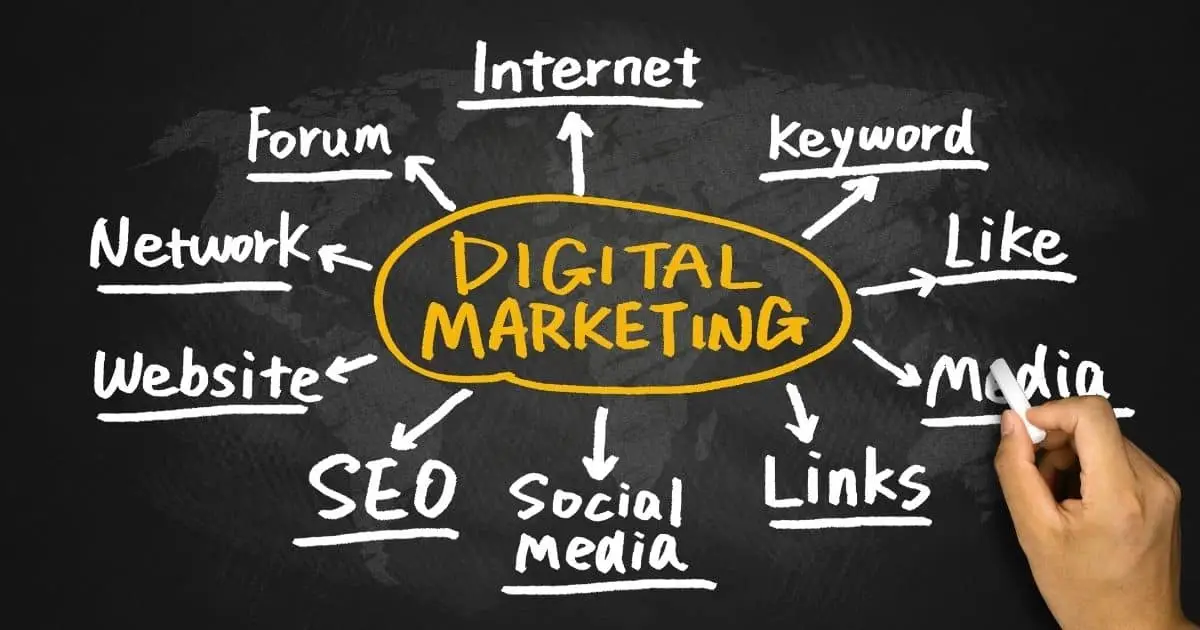
How to Choose a Digital Marketing Agency That Delivers Results
In the modern business world, a strong digital presence is not only recommended, but necessary. Businesses of all sizes, from professionals…
Read full articleWant better local visibility on Google?
Talk to us